Budgeting Tool with Claude AI
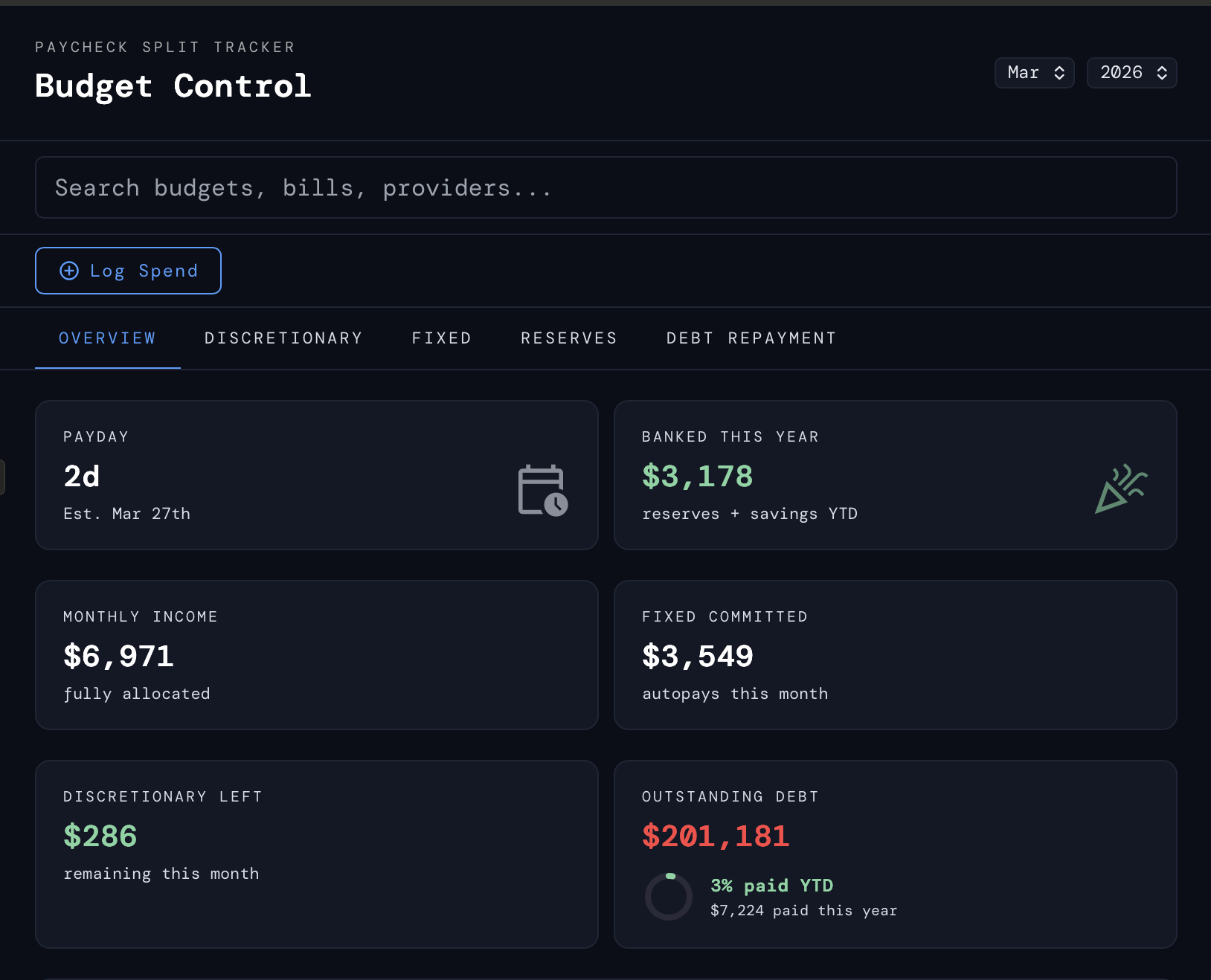
A Personal Tool To Budget
I built this personal finance dashboard in collaboration with Claude AI, without prior React experience. I started with a concept of what I wanted and focused on specific use cases and sprinkled in additional features as I went on. Development and creation were fast, and let me focus on realistic use cases, testing, and design adjustments. Connecting Claude with Figma helped me take control of the design more - it created designs which I edited, and Claude updated the tool.
Lessons Learned
Some of these lessons are important when working with human developers as well, but others are specific to AI.
Save your long prompts elsewhere during busy times.
If Claude is slow to respond, your message is likely to disappear, never to be found again.Learn how to scan the code.
You don’t have to be a proficient coder, but it’s worth scanning the code for things that look strange.
Clear, specific direction produces good results - vague requests don’t.
Remind the AI about project goals and use cases as you go. Claude will revert to splashy, useless nonsense if given too much free rein.Incremental design changes created regressions.
It was helpful to clarify when other tabs would be affected, or to force AI to plan changes before committing them.Claude is not a designer (yet).
Basic design principles were skipped in favor of something that looked a lot like other dashboards found on the web.
Icons in particular were a rabbit hole I didn’t expect. I burned all of the processing time I had for 12 hours on some really lousy SVG’s with Sonnet 4.6.
I asked Claude what lessons it learned during the session.
“The most instructive failure was asking [me] to design custom icons. I iterated through dozens of versions — an airplane, a paw print, a money sack — and the results were consistently poor. AI can generate SVG paths, but it can’t see what it’s drawing. I eventually maxed out my processing capacity for a while pushing on something that wasn’t going to work. The fix was simple: switch to Google’s Material Design icon library and reference icons by name.”